EML to CSV — Every Email as a Row: Date, From, Subject, Attachments
Drop a folder's worth of .eml, .emlx or .msg files on the box below. Each file is parsed in this tab and becomes one row — date, from, to, subject, attachment names. Nothing leaves your device: the File API reads the bytes here, and the CSV is built as a Blob you download. Drop a second batch and the new rows are appended.
Drop .eml, .emlx or .msg files — or a whole folder — here, or click to choose files. Up to 2,000 files per batch. Nothing is uploaded.
Each file becomes one row. Later batches are appended.
Who needs a spreadsheet of their email
Discovery and legal review often start with a list, not with reading. You have a folder of exported messages and you need to know what was sent, when, by whom, and with which attachments, before you open anything. This page turns those files into a spreadsheet so the triage happens in a tool that can sort and filter. It is not a legal-hold system and it does not stamp exhibit numbers; it is an index of the files you dropped.
Bookkeeping is the quieter case. Receipts and invoices that arrived by email and were saved as .eml files sit in a folder until you have to match them. Date, from, subject and attachment names in one sheet are enough to find a payment without opening each message.
Migrating a mailbox is the same job at a larger scale: an inventory of what a folder of exported messages contains, before you decide what to import. Auditing a shared inbox is the last common case — who wrote to whom, how often, and what came attached — without reading every body.
The columns, exactly
The CSV has ten columns. The header row uses these labels, in this order:
- File — the file name you dropped.
- Date — ISO 8601 with a UTC offset; see the next section.
- From, To, Cc — header text as written in the message, after RFC 2047 decoding on .eml and .emlx. Outlook
.msgfiles fill the same columns from the parsed Outlook fields. - Subject — the subject line, same decoding rules as From / To / Cc.
- Attachments— how many entries are in the parser's attachments list.
- Attachment Names — those file names, separated by a semicolon and a space. Empty names are dropped.
- Size (bytes) — the size of the dropped file, not of the body.
- Message-ID — the Message-ID header without angle brackets. Empty for
.msg: the Outlook parser on this site does not read Outlook's Message-ID property.
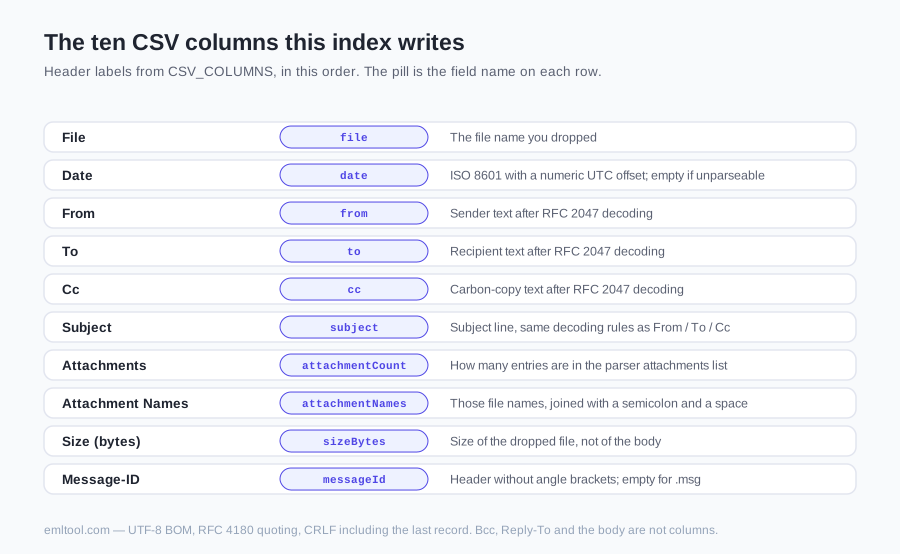
Bcc, Reply-To and the message body are not in the CSV. This is an index, not an archive of the mail itself. Keep the original files if you still need the text.
Dates and time zones
For .eml and .emlxthe Date header's own offset is kept. Tue, 03 Mar 2026 09:15:00 +0530 becomes 2026-03-03T09:15:00+05:30. Zone names — UT, UTC, GMT and Z (all read as +00:00) plus the obsolete RFC 5322 names EST, EDT, CST, CDT, MST, MDT, PST and PDT — are mapped to numeric offsets before the timestamp is parsed, because not every JavaScript engine accepts a bare EST suffix.
For .msg the parser reads a UTC delivery time from the file (messageDeliveryTime or clientSubmitTime), so the cell ends in +00:00. That time has no sender offset attached; it is not converted into the zone your mail app happens to show.
A message with no parseable Date gets an empty cell rather than an invented one. The spreadsheet is not re-sorted: rows appear in the order the files were processed. Sort by the Date column in your spreadsheet app if you want chronological order.
Attachments are counted and named, not extracted
The count and the file names come from the MIME parts the parser walks (or from the .msg attachment table). Inline images that carry a Content-ID are included: they land in the same attachments array as regular files, with a filename from the part or a generated attachment-N name. Extra non-body text parts are counted there too. The first text/html and text/plain body parts are not.
The CSV does not contain attachment bytes — only the count and the names. If you need the files themselves, use Extract EML Attachments, which lists each attachment on an opened message and lets you download it. That is a different job from indexing a folder.
.msg and .emlx files work too
Outlook .msg files go through the msgreader parser in the browser and come out in the same row shape as .eml. You can mix the three extensions in one drop. Message-ID stays empty on .msg rows, and the Date cell is UTC, as described above.
Apple Mail .emlx files are ordinary RFC 822 with a length line in front and a plist after the message. The same parser that the rest of this site uses strips that wrapper before it reads the headers, so .emlx is accepted here without renaming. A .partial.emlx stub — Mail has already moved large attachments into a sibling Attachments folder — is parsed as it is: the count and names come from whatever MIME parts remain in the file, and the offloaded bytes are not fetched from that folder.
.mbox is not accepted on this page. A mailbox file is many messages in one blob, and this tool indexes one file per row. Open an exported mailbox in the MBOX Viewer instead.
Limits
2,000 files per batch. Drop more in a second batch and the new rows accumulate; the first batch is not thrown away. You can drop a whole folder: the tool walks it with the browser's directory-entry API and collects the mail files inside, subfolders included. The Choose a folder button inside the drop zone does the same through a folder picker. Files in that tree that are not .eml, .emlx or .msg are skipped and counted in a notice. Per-file parse failures are listed under the tool and do not stop the rest of the batch.
Every file is read fully into memory in the tab, so a handful of huge messages or many thousands of files can exhaust a browser tab. The preview table shows the first 50 rows; the CSV you download contains all of them.
| Limit | What happens |
|---|---|
| Files per batch | 2,000. Drop more in a second batch and the new rows accumulate. |
| Preview | The preview table shows the first 50 rows; the CSV you download contains all of them. |
| Folder drop | Walks the tree including subfolders. Files that are not .eml, .emlx or .msg are skipped and counted in a notice. |
| Parse failures | Listed under the tool and do not stop the rest of the batch. |
| Memory | Every file is read fully into memory in the tab. |
Privacy
The File API reads the files in your browser. The parser runs in this tab. The CSV is built as a Blob in this tab and downloaded from a local object URL. There is no upload endpoint for this tool and no account. Close the tab and nothing remains here.
The privacy page covers the whole site, including the analytics scripts that run on the pages themselves.
Opening the CSV in Excel, Numbers or Google Sheets
The file starts with a UTF-8 byte-order mark so Excel reads accented names correctly instead of treating the sheet as a legacy code page. Commas and quotes inside a field are handled per RFC 4180: the field is wrapped in double quotes, and internal double quotes are doubled. Line breaks never reach a cell — every text field has CR/LF folded to a space before the CSV is built.
Google Sheets and Numbers import the file directly. If a subject had a line break in the original header, it has already been folded to a space in the cell, so you do not get a split row.
FAQ
Is anything uploaded when I convert EML to CSV?
No. The files are read with the browser File API and parsed in this tab. The CSV is built as a Blob in the same tab and saved from a local object URL. There is no upload endpoint for this tool, and you do not need an account. Close the tab and the bytes are gone from here.
Which columns does the CSV contain?
Ten columns, in this order: File, Date, From, To, Cc, Subject, Attachments, Attachment Names, Size (bytes), and Message-ID. File is the name you dropped. Date is ISO 8601 with a numeric UTC offset: the Date header's own offset when it had one, otherwise +00:00. Attachments is a count; Attachment Names is those file names joined with a semicolon and a space. Size (bytes) is the size of the dropped file, not of the body. Bcc, Reply-To and the message body are not in the CSV.
Why is the Date column in a different time zone than my mail app shows?
Mail apps often display the Date header in your local zone. This CSV keeps the offset that was on the message. For .eml and .emlx that is the Date header's own offset, so Tue, 03 Mar 2026 09:15:00 +0530 becomes 2026-03-03T09:15:00+05:30. Obsolete names such as EST or PDT are mapped to their numeric offsets. For .msg the parser supplies a UTC delivery time, so those cells end in +00:00. A message with no parseable Date gets an empty cell rather than an invented one.
Can I include Outlook .msg files in the same CSV?
Yes. Drop .msg files alongside .eml and .emlx; they go through the Outlook parser in this tab and land in the same table. Message-ID is empty for .msg because the Outlook parser on this site does not read Outlook's Message-ID property — its headers map is empty. The Date cell for .msg ends in +00:00 because the parser exposes a UTC delivery time. From, to, cc, subject, attachment count and names, and file size still fill the same columns.
Why do some rows have an empty Message-ID?
Two reasons. Outlook .msg files have an empty headers map in this parser, so Message-ID is always blank for those rows. An .eml or .emlx file that never had a Message-ID header, or had an empty one, also gets a blank cell. When the header is present, the CSV stores it without the surrounding angle brackets. The rest of the row is still filled from the other fields.
Does the CSV contain the attachments themselves?
No. The Attachments column is a count, and Attachment Names is a semicolon-separated list of file names. Inline images that have a Content-ID are included in that count and list, because the parser puts them in the same attachments array as regular files. The CSV never contains the attachment bytes. Use the Extract EML Attachments page on this site if you need the files themselves.
How many email files can I convert at once?
2,000 files per batch. If you drop more than that, the first 2,000 are indexed and the rest are skipped, with a notice to drop them as a second batch. Rows from later batches are appended; they do not replace the earlier ones. Every file is read fully into memory in the tab, so very large messages or many thousands of files can exhaust the tab. The preview table shows the first 50 rows; the downloaded CSV contains all of them.