MBOX Viewer — Read a Whole Mailbox File Without Importing It
An .mboxfile is a whole mailbox in one text file: Gmail Takeout's All mail Including Spam and Trash.mbox, Thunderbird's extensionless Inboxin a profile folder, Apple Mail's Export Mailbox dump, or an old Unix/Evolution/Pine spool. The messages are glued together, one after another. Drop the file below to list the messages (the first 500 if the export is huge), click to read headers, body and attachments, and save any single message as .eml. No file leaves your device — parsing runs in this tab.
Drop .eml, .emlx, .msg or .mbox files here — or click to choose
Opens instantly. Your files never leave this device — parsing runs 100% in your browser.
What an .mbox file is
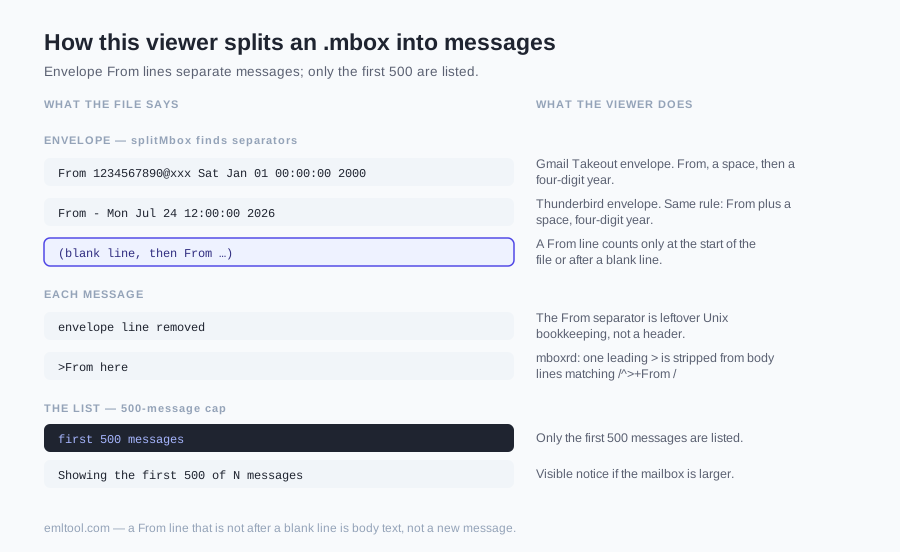
An .mbox file is not one email. It is a mailbox: many RFC 822 messages concatenated in a single text file, each one introduced by a line that starts with From and a space — the envelope, not the From: header. That envelope is leftover bookkeeping from the old Unix mailer. It looks like From 1234567890@xxx Sat Jan 01 00:00:00 2000 (Gmail Takeout) or From - Mon Jul 24 12:00:00 2026 (Thunderbird). The four-digit year at the end is how this viewer tells a real separator from a sentence in the body that happens to start with From.
Because a body line can also begin with From, the mboxrd convention — what Thunderbird and Gmail Takeout actually write — quotes those lines by adding a > in front: >From here. On the way in, this page removes one leading > from those quoted lines so the message you save as .eml is the original, not the mailbox-escaped copy. A From line that is not sitting immediately after a blank line is treated as body text and does not start a new message. That is RFC 4155, not a guess.
The format is simple, which is why it is still around. It is also why the file can be enormous. There is no index inside it. There is no compression unless you gzipped the export yourself. Gmail's All-mail Takeout is often hundreds of megabytes and sometimes gigabytes: the whole archive you ever kept, including spam and trash, stuck end to end. Opening that in a text editor is possible and miserable. Opening it here is the same bytes, split on those envelope lines, listed on the left.
Where yours came from
Three sources show up constantly. Gmail Takeout: Google Account → Data & privacy → Download your data, tick Mail, pick the mailbox. The zip unpacks to a file literally named All mail Including Spam and Trash.mbox, or a label-named .mbox if you exported one label. That file is mboxrd. Drop the .mbox, not the zip and not the HTML index Takeout also throws in.
Thunderbird keeps each folder as an mbox file with no extension. POP and Local Folders live under <profile>/Mail/<server or Local Folders>/; IMAP accounts (the common case) live under <profile>/ImapMail/<server>/ — files like INBOX have no extension. On Linux the profile is ~/.thunderbird/<profile>; Windows puts it under AppData; macOS under Library. The .msf file sitting next to each folder is a cache, not the mail. Rename Inbox to Inbox.mbox if the picker hides extensionless files, or drop the file anyway: the viewer reads the first line, not only the name.
Apple Mail is two different things. The on-disk mailbox bundle that ends in .mbox is actually a folder of .emlx files — use the EMLX Viewer for those. Mailbox → Export Mailbox… writes a .mbox package (a folder) that contains an extension-less file named mbox; a folder cannot be dropped into the file picker. Right-click the exported .mbox → Show Package Contents → drop the inner mbox file (rename it to .mbox if the picker filters it). Evolution, Pine, Elm, and the original /var/mail spool wrote the same envelope. Some old Windows tools used .mbx; this viewer accepts that extension too when the bytes are Unix mbox.
| Source | What you drop | Note |
|---|---|---|
| Gmail Takeout | All mail Including Spam and Trash.mbox, or a label-named .mbox | mboxrd. Drop the .mbox, not the zip and not the HTML index. |
| Thunderbird | Extensionless folder file (Inbox, Sent, INBOX) next to a .msf cache | Rename to Inbox.mbox if the picker hides it, or drop the file anyway. |
| Apple Mail Export Mailbox… | The inner extension-less file named mbox inside the .mbox package | The on-disk .mbox bundle is a folder of .emlx — use the EMLX Viewer for those. |
| .mbx | Accepted when the bytes are Unix mbox | A proprietary dump with no From envelope is treated as one message. |
Reading it here vs importing it
The usual advice is: import the mbox into Thunderbird or Outlook, then browse. That works. It also means installing a client, waiting while it builds an index of the whole mailbox, and leaving a copy of the whole mailbox inside that client's profile. If you already live in Thunderbird, import is the right long-term home for the mail.
This page does not import anything. It reads the file in this tab, splits it on the envelope lines, and lists the messages. Click one to read headers, HTML or plain text, and any attachments that are actually encoded inside that message. Close the tab and the bytes are gone from here. There is no account, no mailbox left behind on a server, and no second copy sitting in a mail client's folder. Use this when you want to look, to pull one message out as evidence, or to check that a Takeout file is not empty before you bother importing it. Use a real client when you want search, folders, and to keep reading the mail for months.
Saving one message as .eml
A mailbox is a pile. Sometimes you need one brick. Forwarding a single mail to a lawyer, attaching it to a support ticket, or keeping a dated copy of an offer letter is easier as a standalone .emlthan as a 400 MB mbox you cannot search on a phone. That is the practical meaning of "mbox to eml converter" for most people: not a zip of 40,000 files, one message you can actually send.
Open a message from the list and use Save as .eml in its header (next to the EML to HTML link and Export PDF). The download is the RFC 822 text of that message — headers and body — after the mbox envelope is stripped and mboxrd quoting is undone. It is the message exactly as stored, not a screenshot and not a PDF printout. Thunderbird, Apple Mail, and most webmail "attach this file" flows will open it. There is no bulk dump of the whole mailbox: one at a time, on purpose. Exploding a Takeout file into tens of thousands of downloads would lock the tab and fill your Downloads folder. If you need the whole mailbox as separate files, a local script — or import, then save — is the honest tool. Here, pick the ones you actually need.
Limits (honest)
The file is read into memory. A multi-gigabyte Takeout export will be slow, or it will fail in the tab when the browser runs out of RAM. Split large exports first — by label in Takeout, or with a command-line splitter — if the file is bigger than you would happily open in a text editor. This is a viewer, not a streaming database.
Only the first 500 messages are listed, with a visible notice if the mailbox is larger: "Showing the first 500 of N messages". That cap is to keep the tab usable, not because the rest of the file is secret. Attachments that are MIME-encoded inside a message open and download as they do for a normal .eml. Attachments that were never in the file — offloaded to a sibling folder, stripped by the exporter, mentioned only as a path in the headers — cannot be recovered here. We do not fetch anything from Gmail or from disk paths in the message. Parsing is local. If that is still not enough for a legally sensitive mailbox, do not drop it in a browser at all; use an air-gapped client. This page will not phone home with the file. It also will not repair a truncated Takeout zip.
FAQ
Is the .mbox file uploaded to your server?
No. The mailbox is read in this tab. There is no upload endpoint for the viewer, no account, and no copy of your mail sitting on a machine we run. Close the tab and the bytes are gone from here. That is the point of a local mbox viewer: Takeout files and old Thunderbird folders are usually full of mail you would not hand to a conversion website.
Can I open a Gmail Takeout .mbox?
Yes. Takeout's Mail export is mboxrd. After you unzip it you typically get a file named All mail Including Spam and Trash.mbox, or one .mbox per label if you chose that. Drop the .mbox here — not the zip, not the HTML index Takeout also includes. Very large All-mail exports may hit the memory and 500-message limits described below; exporting one label at a time is the practical path.
Thunderbird's Inbox has no extension. Will it still open?
Yes. Thunderbird stores each folder as an extensionless mbox file (Inbox, Sent, Trash, and the names you created) next to a .msf index you can ignore. Rename the file to Inbox.mbox if the file picker hides it, or drop the extensionless file onto the zone above. The viewer looks at the first line for a From envelope, not only at the filename.
How many messages can I open?
The first 500 messages in the file are listed. If the mailbox is larger you will see a notice: Showing the first 500 of N messages. That cap keeps the tab usable. For a 20-message export you will see all 20. For a 40,000-message Takeout dump, split or import the rest in a desktop client.
Can I convert the whole mbox to separate .eml files?
One message at a time, from this page. Open the mailbox, click a message, Save as .eml. That file is the RFC 822 text of that message, envelope removed, mboxrd quoting undone. There is no bulk unzip-the-mailbox button — dumping tens of thousands of downloads from a browser tab is a bad idea. If you need the whole mailbox exploded into files, use a local splitter or import into Thunderbird and save from there.
What about .mbx files from old clients?
Some older Windows and Unix programs used .mbx for the same concatenated-mailbox idea. This viewer accepts .mbx and will split it when the file starts with a Unix From envelope. If the .mbx is a different proprietary dump (some Outlook Express variants were), a file with no From envelope is treated as one message and will show as a single garbled message. Try dropping it; if the first line is From and a date, it is the format we handle.
Does it show attachments?
Attachments encoded inside a message — a PDF in multipart/mixed, an image with a Content-ID — show up under the body and download as they do for a normal .eml. Nothing that was never in the file can be recovered: offloaded parts, truncated Takeout zips, or a path to a file on someone else's disk. The viewer does not log into Gmail to fetch the rest.