Extract Attachments from EML and MSG Files
Someone exported a mailbox, and now the invoice you need is trapped inside an .eml file nothing on your machine will open. Drop the file below: every attachment is listed with its name and size, and each one downloads with a click — parsed on your device, nothing uploaded anywhere. Outlook's .msg format works the same way, no Outlook licence involved.
Drop .eml, .emlx, .msg or .mbox files here — or click to choose
Opens instantly. Your files never leave this device — parsing runs 100% in your browser.
How to get the attachments out: three steps
- Open the email file. Drag the .eml or .msg into the viewer above (or click to pick it). Several files at once is fine — each opens as its own tab in the session.
- Read the attachment list. It sits alongside the message, one row per attachment with the real filename and size. Inline logos and signature images stay in the body where they belong instead of cluttering the list.
- Download what you need. Each row has its own Download button and saves that file exactly as the email carries it. The source email is read, never modified.
Need the message itself as a file too? Export it to PDF and keep the attachments alongside — the PDF holds the message, not the attachments.
Inline images vs real attachments — why the list is shorter than you expected
An email is a MIME container with parts. Parts marked as attachmentare the files people mean when they say "the attachment" — contracts, spreadsheets, photos sent as files. Parts referenced by the HTML body through a content ID are inline images: the company logo, the signature banner, a pasted screenshot. This viewer resolves inline images into the message preview so it looks the way it did in the mail client, and reserves the attachment list for actual files — the count you see is the count of things worth downloading, not padding.
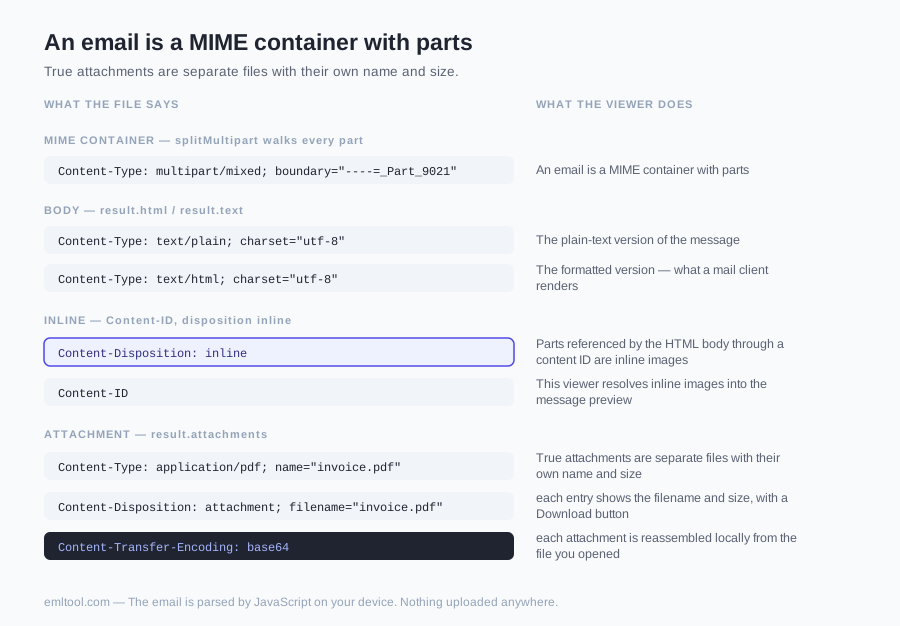
The distinction matters in the other direction too: if you were told a file was attached and the list is empty, check whether the sender pasted it into the body as a picture — common with phone screenshots — or whether their Outlook wrapped everything into a winmail.dat (see the FAQ below).
The audiences this was actually built for
- Legal and HR file-keeping.Mailbox exports arrive as folders of .eml or .msg; the exhibits are the attachments inside them. Extracting locally means the material never crosses to a third-party server — for privileged or personnel files, that's not a nicety, it's the requirement. Keep the original email files; extracted copies are for working with.
- Mailbox migrations and old archives. The attachments people actually miss after switching providers are sitting in the export nobody can open. This reads the export directly.
- Suspicious mail, handled carefully.The body renders in a sandboxed frame with scripts and remote resources blocked by default, and the attachment list shows every file's true name and size before you download anything. Loading remote images or running an attachment is a separate, explicit risk decision.
Extract attachments from EML — FAQ
How do I extract attachments from an EML file without an email client?
Drop the .eml file into the viewer above. The attachment list appears alongside the message — each entry shows the filename and size, with a Download button that saves that file to your device. No Outlook, no Thunderbird, no import step, and the email itself never leaves your browser.
Does extracting attachments from MSG files work too?
Yes. Outlook's .msg format goes through the same flow: open the file, the attachments are listed, download what you need. We've tested this against real Outlook-generated .msg files, including one carrying a 122 KB attachment — it came out byte-for-byte usable.
Why do I see images in the email body but not in the attachment list?
Emails carry two kinds of extra content. Inline images (logos, signatures, embedded screenshots) are referenced by the HTML body via a content ID and render in place — the viewer resolves those into the message preview. True attachments are separate files with their own name and size, and those are what the attachment list shows. A file can occasionally be both; when it has a real filename it appears in the list.
Can I download all attachments as one zip?
No — downloads are one file at a time, honestly stated. For an email with a handful of attachments that's a click each. If you routinely need to bulk-extract attachments from hundreds of emails, that's a desktop-tool or scripting job, not a browser-tab job.
Are the attachments uploaded or scanned anywhere?
Neither. The email is parsed by JavaScript on your device and each attachment is reassembled locally from the file you opened — there is no upload endpoint and no server-side virus scan. That cuts both ways: your files stay private, and nothing here vouches for their safety. Treat downloaded attachments exactly as you would the originals — don't run executables from mail you don't trust.
Is it safe to open a suspicious email here just to get at its attachment?
It is safer than opening the message live in a mail client: scripts and remote content are blocked by default, so the sender's tracking pixel does not fire. You can inspect the attachment's real filename and size before deciding whether to download it. Do not load remote images or run an attachment you do not trust.
What about winmail.dat attachments?
A winmail.dat file is Outlook's TNEF wrapper — a container some Outlook configurations produce in place of ordinary attachments. It is not a normal MIME attachment, and this viewer lists it as the file it is rather than unpacking what's inside. If a correspondent keeps sending winmail.dat, the practical fix is asking them to switch Outlook to plain or HTML mail format.
Does extraction change the attachments or the email?
No. The source .eml/.msg is read, never written, and each attachment is saved exactly as the bytes the email carries. If you're preserving material for a dispute or an HR file, keep the original email file alongside the extracted attachments — the original is the evidence; extractions are working copies.
Related: EML viewer · MSG viewer · EML to PDF · 5 ways to open an EML file · What is an .eml file?