EML to PDF — Save Any Saved Email as a PDF
Need an email as a PDF for a record, a court filing, an expense report or just to share it readably? Open the .eml or .msg file below, click Export PDF, and save. It uses your browser's own print-to-PDF — 100% in your browser, nothing uploads, no watermarks, no page limits.
Drop .eml, .emlx, .msg or .mbox files here — or click to choose
Opens instantly. Your files never leave this device — parsing runs 100% in your browser.
EML to PDF in four steps
Drop your .eml or .msg file into the viewer above (or click the box to browse). The email opens instantly with its headers and formatted body.
Click the Export PDF button at the top-right of the message. A clean print view opens — headers laid out as a neat block, body formatted for paper, navigation and buttons stripped out.
In the print dialog that appears, set the destination/printer to 'Save as PDF' (Chrome/Edge) or use the PDF menu at the bottom-left (Safari on Mac).
Save. You now have a self-contained PDF of the email — sender, date, subject and body preserved — ready to file, share or archive.
On a phone:the same two taps work. On iOS, Export PDF opens the print sheet — pinch out on the preview thumbnail to turn it into a PDF, then use the share sheet to save it to Files. On Android, choose "Save as PDF" as the printer.
Why would you convert an email to PDF at all?
Because an .eml file is a terrible thing to hand another person. It needs a mail client to read, it looks like corrupted text in Notepad, and half the people who receive one will reply asking what to do with it. A PDF opens everywhere, prints predictably, and can be filed in systems that have never heard of MIME. The recurring reasons people run EML to PDF:
- Legal and compliance. Correspondence attached to a filing, a contract confirmation, or a message placed under legal hold. Keep the original file too — see the note on evidence below.
- HR and internal investigations. A complaint thread that has to be shared with people who should not be given access to the mailbox it came from.
- Expenses and accounting. Booking confirmations, receipts and invoices that arrive as email bodies rather than attachments. Most expense systems accept a PDF and nothing else.
- Client and project records. A change of scope agreed in email, filed with the project rather than left in someone's inbox.
- Insurance, warranty and visa paperwork. Processes that ask for documentary proof and reject an .eml file they cannot open.
- Handover and offboarding. Key threads exported before an account is closed, so the knowledge survives the mailbox.
What ends up in the PDF?
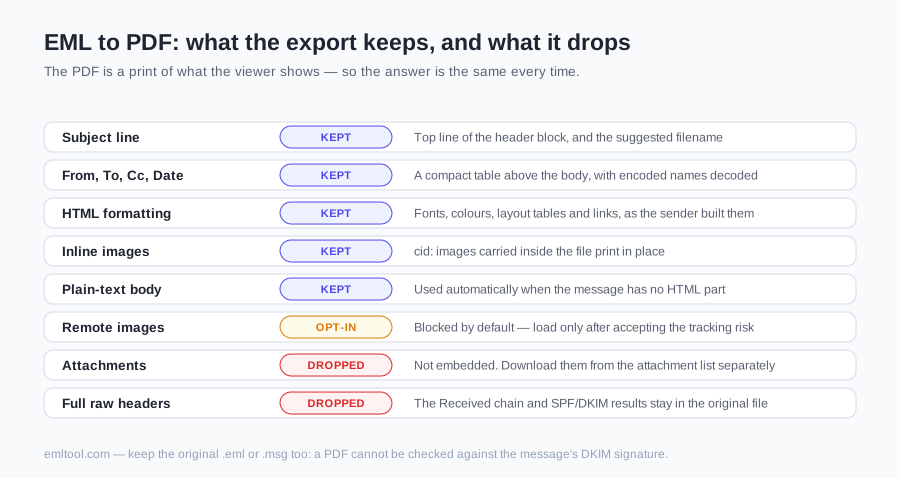
The export prints what the viewer displays, so the answer is precise rather than promotional. Here is exactly what survives the conversion and what does not:
| Element | In the PDF? | Detail |
|---|---|---|
| Subject line | Yes | Rendered as the top line of the header block, and used as the suggested filename. |
| From, To, Cc, Date | Yes | Laid out as a compact table above the body — decoded, so international names read correctly. |
| HTML formatting | Yes | Fonts, colours, layout tables and links are preserved as the sender designed them. |
| Inline images | Yes | Images carried inside the file (cid: references) are resolved and printed in place. |
| Remote images | Opt-in | Blocked by default. They print only after you explicitly load them and accept the tracking risk. |
| Plain-text body | Yes | Used automatically when the message has no HTML part. |
| Attachments | No | Not embedded. Download them separately from the attachment list — a PDF cannot carry them here. |
| Full raw headers | No | The Received chain and SPF/DKIM results are not in the printed view. Keep the original file if you need them. |
How do you get the PDF to look right?
Almost every complaint about an emailed-to-PDF document comes down to a print-dialog setting rather than the email itself. Five that are worth checking before you hit save:
- Turn on Background graphics. Browsers disable background colours and images by default to save ink. Newsletters and branded templates look broken without it — the toggle is under More settings in Chrome and Edge.
- Adjust scale before paper size. If a wide layout table is clipped, drop the scale to 80–90% first. It usually fixes the overflow without the awkwardness of a landscape page.
- Decide about headers and footers. The browser can stamp each page with the date and page numbers. For a casual copy, turn it off for a cleaner document; for a record, leaving it on adds a useful timestamp.
- Check the page count before saving. A long newsletter can run to twenty pages. The print preview shows the count — if only the first screen matters, set a page range.
- Save the original file too. Two seconds of extra work. The .eml or .msg is the authoritative artefact; the PDF is the readable copy of it.
What this tool is — and isn't
Honesty first: this is a print-to-PDF bridge, not a server-side conversion engine. We render the email faithfully in your browser and hand it to your browser's print system, which produces the PDF locally. That design is exactly why it's private (no upload), free (no server costs to recoup) and instant (no queue).
What it does well: single emails, converted on the spot, with formatting, inline images and a professional header block. For batch-converting whole folders in one click, see the Pro add-on. Attachments are not embedded inside the PDF — download them separately from the viewer's attachment list before or after exporting. Have a whole folder? See batch converting EML to PDF.
One practical tip: in the print dialog, enable "Background graphics"if the email's design relies on background colors — browsers turn that off by default to save ink.
Does the email leave your computer during conversion?
No — and on this page that matters more than usual. The emails people convert to PDF are, by definition, the ones important enough to keep: disputes, complaints, contracts, invoices. Compare the two architectures:
- Server-side converters.You upload the message, a machine you cannot inspect converts it, and the file sits in that operator's storage under a retention policy you never read. The message body, every recipient address and every attachment go with it.
- This page.The parser is JavaScript running on your device. Your browser's own print engine makes the PDF. There is no upload endpoint — the site is static pages — so there is nothing to retain and nothing to leak.
- How to verify it yourself.Load this page, turn off your network, then convert a file. It keeps working, which is only possible because no request is being made. You can also watch the Network tab in your browser's developer tools while you export.
MSG to PDF, and other formats
The viewer on this page accepts the same formats as the rest of the site, so the export flow is identical whichever one you have. Outlook .msg files are parsed in the browser and printed the same way — details on the MSG viewer page. Apple Mail .emlx files have their wrapper stripped automatically. If you are not sure which format you were sent, What Is an EML File? has a comparison table, and How to Open an EML File covers what to do per device before you get as far as exporting.
FAQ
How do I convert an EML file to PDF for free?
Open the .eml file in the viewer above, click Export PDF, and your browser's print dialog opens with a clean copy of the email. Choose 'Save as PDF' as the printer/destination and save. The whole flow is free and runs on your device.
Does the PDF keep the email's formatting and headers?
Yes. The export view includes a header block (From, To, Cc, Date, Subject) followed by the email body with its HTML formatting and inline images preserved. Links remain readable in print styling.
Can I convert many EML files to PDF at once?
The free tool converts one email at a time — you can open many files in a session and export each with two clicks (Export PDF → Save). For true batch conversion (drop 50 files, get 50 PDFs in a ZIP), see the Pro add-on at /pro — same privacy model, still 100% in your browser.
Does MSG to PDF work the same way?
Yes. Open the .msg file in the same viewer and click Export PDF — Outlook's format goes through the identical print-to-PDF flow.
Is the email uploaded during conversion?
No. There is no conversion server. The file is parsed in your browser and the PDF is produced by your own browser's print engine — that's why it works offline once the page has loaded.
Do the attachments end up inside the PDF?
No. The PDF contains the message itself — header block, body, inline images. Attachments stay attachments: download them individually from the attachment list in the viewer and keep them alongside the PDF. Nothing here embeds a spreadsheet or a second PDF into the exported file.
Is a printed-to-PDF email good enough as evidence?
It preserves what the message looked like, which is often all that's asked for — but it is a rendering, not the original. A PDF cannot be checked against the message's DKIM signature, and it drops the Received chain that shows how the mail actually travelled. If the authenticity of the email could ever be questioned, archive the original .eml or .msg file alongside the PDF. We're a tool, not your lawyer — when a filing has formal requirements, follow those.
Why does my PDF have white gaps or a cut-off table?
Emails are laid out for an endless scroll; a PDF has fixed pages. Wide layout tables can overflow the page width and elements can break across a page boundary. Reducing the scale in the print dialog (to 80–90%), switching to landscape, or choosing a larger paper size usually fixes both.
Keep reading
Need to convert many emails at once? Drop 50 .eml files, get 50 PDFs in a ZIP — one click, still 100% in your browser. Try the first 3 free.
- $9.99 launch pricing — 24-hour batch pass: unlimited files and unlimited re-runs for 24 hours after your first batch finishes.
- $39.99 — lifetime: unlimited batches, forever.
Both one-time. No subscription.